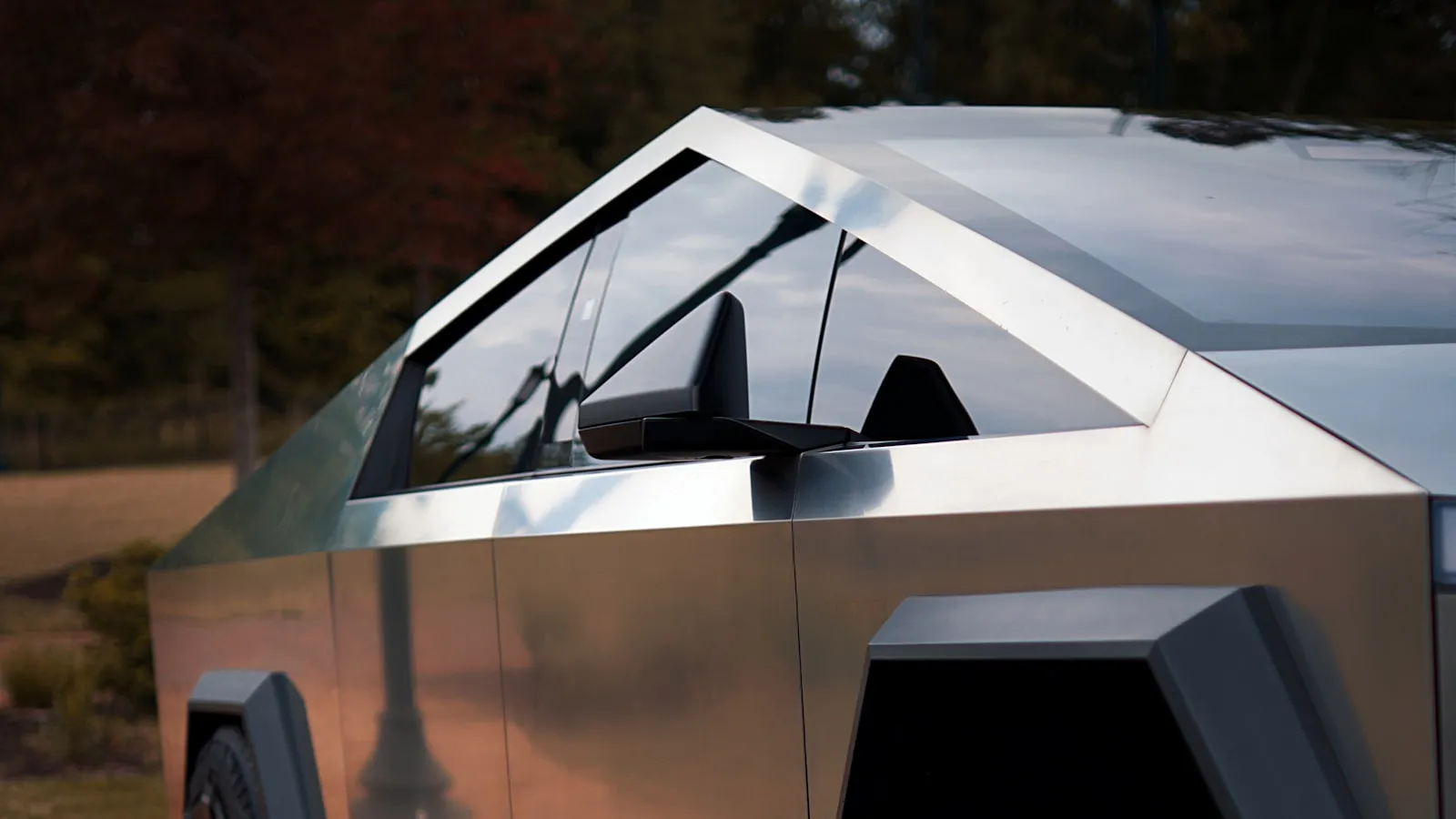
Cybertruck owners setting up HomeLink for a driveway gate often ask one question before anything else: does the stainless steel exoskeleton interfere with the RF signal? It doesn’t. This guide covers how to configure Cybertruck HomeLink for a driveway gate, what’s different from other Tesla models, and the failure modes specific to gate setups.
The Stainless Steel RF Question
The concern is understandable. Metal is a natural RF shield, and the Cybertruck’s stainless exoskeleton is more metal than most vehicles. In practice, HomeLink’s transmitter module is positioned to broadcast through the windshield glass, not through the steel panels. RF at 310–315 MHz travels cleanly through glass, so the effective operating range is comparable to a Model 3 or Model Y at the same distance.
What does affect range — on the Cybertruck and any other vehicle — is the quality and placement of the gate operator’s antenna at the post. A poorly positioned or coiled antenna limits range regardless of what’s triggering it.
Accessing HomeLink on the Cybertruck
Cybertruck HomeLink is configured via the touchscreen: Controls > HomeLink. From there, you can add new profiles, rename channels, and set up location-based auto-open. There are up to three programmable channels.
The transmitter module broadcasts forward through the windshield area of the vehicle. When training HomeLink to a remote signal, hold the original gate remote toward the front of the cabin interior — near the rearview mirror area — for the cleanest signal capture.
Training Sequence: Rolling-Code Gate Openers
Most residential driveway gate operators installed after 2000 use rolling code. LiftMaster Security+ 2.0, Chamberlain Security+, and Genie Intellicode all require a two-step process because the opener and HomeLink need to exchange a synchronized starting code, not just copy a fixed signal.
Step 1 — Capture the remote signal:
- Navigate to Controls > HomeLink > Add New HomeLink on the touchscreen.
- Hold the original gate remote near the front of the cabin, approximately 2–3 inches from the rearview mirror area.
- Follow the on-screen prompts until the touchscreen confirms the signal is captured.
Step 2 — Sync with the gate opener:
- Go to the gate operator’s control board and locate the LEARN button. On a LiftMaster CSW24UL, it is an orange button inside the unit cover.
- Press and release the LEARN button. The operator holds an authorization window for 30 seconds.
- Return to the Cybertruck and press the new HomeLink profile three times within 30 seconds, holding each press for 2 seconds.
- The gate will activate, confirming the sync.
For a more detailed breakdown of the rolling-code logic — including how to identify whether your opener uses rolling code — HomeLink Programming for Rolling-Code Gate Openers covers the full process and the three failure modes that catch most people.
Why Driveway Gates Create Extra Steps
Garage door openers hang directly above the car, with the antenna wire dangling down into the space. Training distance is short, the signal path is clear. Gate operators sit on a post outside, anywhere from 10 to 30 feet from where the car is normally parked.
This distance doesn’t affect day-to-day triggering — HomeLink operates reliably at 50+ feet. It does affect the training step, because the LEARN-button authorization window is 30 seconds and a gate post often requires unlocking a weatherproof cover with a screwdriver. Budget the extra time before starting Step 2.
For a full list of gate-specific failure points, Why HomeLink Stops Working with Your Driveway Gate covers the RF and mechanical reasons behind each one.
The Cybertruck’s Size and Training Position
The Cybertruck is approximately 81 inches wide. Residential driveway posts typically clear the truck by 5–7 feet per side when it is centered in the opening. A post-mounted gate operator will be on one side, and the signal-capture step benefits from the car being positioned close to that post.
During Step 1, park with the driver’s side — or whichever side is nearer the gate post — within 5 feet. The touchscreen will confirm whether signal capture succeeded. If it fails, moving slightly closer to the gate post’s antenna and repeating is the fix.
LiftMaster-Specific Setup
If your gate runs on a LiftMaster or Chamberlain opener, the LEARN button color identifies the rolling-code protocol:
- Purple: Security+ 2.0, 315 MHz
- Orange: Security+ 2.0, 315 or 390 MHz
- Yellow: Security+, 390 MHz
- Red or green: older generation, may not support HomeLink rolling-code sync
The two-step sequence works for all of these. For the LiftMaster-specific pairing details, including the LEARN button variants across the CSW24UL and other gate controller families, How to Pair Tesla HomeLink to a LiftMaster Gate Operator covers the differences.
Common Failures on Gate Setups
HomeLink is trained but the gate doesn’t respond: Rolling-code sync (Step 2) may have timed out or been skipped. Re-press LEARN on the gate operator and complete the sync within 30 seconds.
Range is under 20 feet: The gate operator’s antenna is likely coiled or mounted at a poor angle. Extend the antenna wire vertically from the control board — most operators ship with 12–18 inches of wire that should hang straight rather than coiled. Uncoiling it typically adds 30–50 feet of reliable range.
Auto-open triggers late or not at all: The Cybertruck supports Tesla’s location-based HomeLink geofence, which attempts to open the gate automatically as the vehicle approaches. The feature has documented limitations with driveway gates — the timing window was calibrated for garage doors and typically triggers too late for gate clearance. Why Tesla’s Geofence Feature Won’t Open Your Driveway Gate explains the timing issue.
FAQ
Does the Cybertruck’s stainless steel exoskeleton block HomeLink’s RF signal? No. HomeLink’s transmitter module broadcasts forward through the windshield area, not through the steel panels. RF at 310–315 MHz passes cleanly through glass, and signal range is comparable to other Tesla models at equivalent distances.
Does the rolling-code programming process differ on the Cybertruck versus other Tesla models? No. The two-step rolling-code process — signal capture from the original remote, then sync at the opener’s LEARN button — is identical across all HomeLink-equipped vehicles. The Cybertruck’s touchscreen interface looks slightly different, but the sequence is the same.
My Cybertruck stored the HomeLink profile but the gate won’t activate. What should I check? First confirm the rolling-code sync step was completed at the gate operator’s LEARN button. If it was, check that the gate operator’s antenna wire is extended vertically and free from obstruction. Also verify the Cybertruck is within 50 feet of the gate when triggering.
Can I program all three HomeLink channels on the Cybertruck? Yes. The Cybertruck supports three programmable HomeLink channels. A driveway gate and a garage door account for two; a second garage or community gate entry uses the third. If you need more than three devices, a standalone universal remote handles the overflow.
What if the Cybertruck touchscreen doesn’t show a HomeLink option? HomeLink availability has varied by Cybertruck trim and production date. If Controls > HomeLink is absent from the touchscreen, your vehicle may not be equipped. Aftermarket retrofit modules exist for Tesla vehicles; verify compatibility with your specific build before purchasing.
A separate approach to gate automation removes the RF credential layer entirely — pairing the vehicle’s GPS position to the gate opener over a direct connection rather than a radio signal. One option in that category is available at getproxly.com/beta.
References
- Tesla Cybertruck Owner’s Manual — HomeLink section (tesla.com/ownersmanual)
- LiftMaster Security+ 2.0 Compatibility Reference (liftmaster.com)
Frequently asked questions
- No. HomeLink's transmitter module broadcasts forward through the windshield area, not through the steel panels. RF at 310–315 MHz passes cleanly through glass, and signal range is comparable to other Tesla models at equivalent distances.
- No. The two-step rolling-code process — signal capture from the original remote, then sync at the opener's LEARN button — is identical across all HomeLink-equipped vehicles. The Cybertruck's touchscreen interface looks slightly different, but the sequence is the same.
- First confirm the rolling-code sync step was completed at the gate operator's LEARN button. If it was, check that the gate operator's antenna wire is extended vertically and free from obstruction. Also verify the Cybertruck is within 50 feet of the gate when triggering.
- Yes. The Cybertruck supports three programmable HomeLink channels. A driveway gate and a garage door account for two; a second garage or community gate entry uses the third. If you need more than three devices, a standalone universal remote handles the overflow.
- HomeLink availability has varied by Cybertruck trim and production date. If Controls > HomeLink is absent from the touchscreen, your vehicle may not be equipped. Aftermarket retrofit modules exist for Tesla vehicles; verify compatibility with your specific build before purchasing.
Does the Cybertruck's stainless steel exoskeleton block HomeLink's RF signal?
Does the rolling-code programming process differ on the Cybertruck versus other Tesla models?
My Cybertruck stored the HomeLink profile but the gate won't activate. What should I check?
Can I program all three HomeLink channels on the Cybertruck?
What if the Cybertruck touchscreen doesn't show a HomeLink option?
Keep reading
Tesla HomeLink vs Rivian HomeLink: Two Different Philosophies
Tesla and Rivian both ship HomeLink, but they implement it differently. Here is what changes in practice — and where both fall short at the driveway gate.
HomeLink Alternative for Tesla: Free, $30, $150, and $350 Options Ranked
Tesla owners frustrated with the $350 HomeLink module have seven real alternatives — from a free physical clicker to a $30 smart controller to $45/year myQ — compared honestly with the trade-offs.
Tesla Sentry Mode and Your Driveway Gate
Sentry Mode activates every time your Tesla parks. Here is what that means for driveway gate hardware, how to avoid false alerts, and how to set a home exclusion zone.