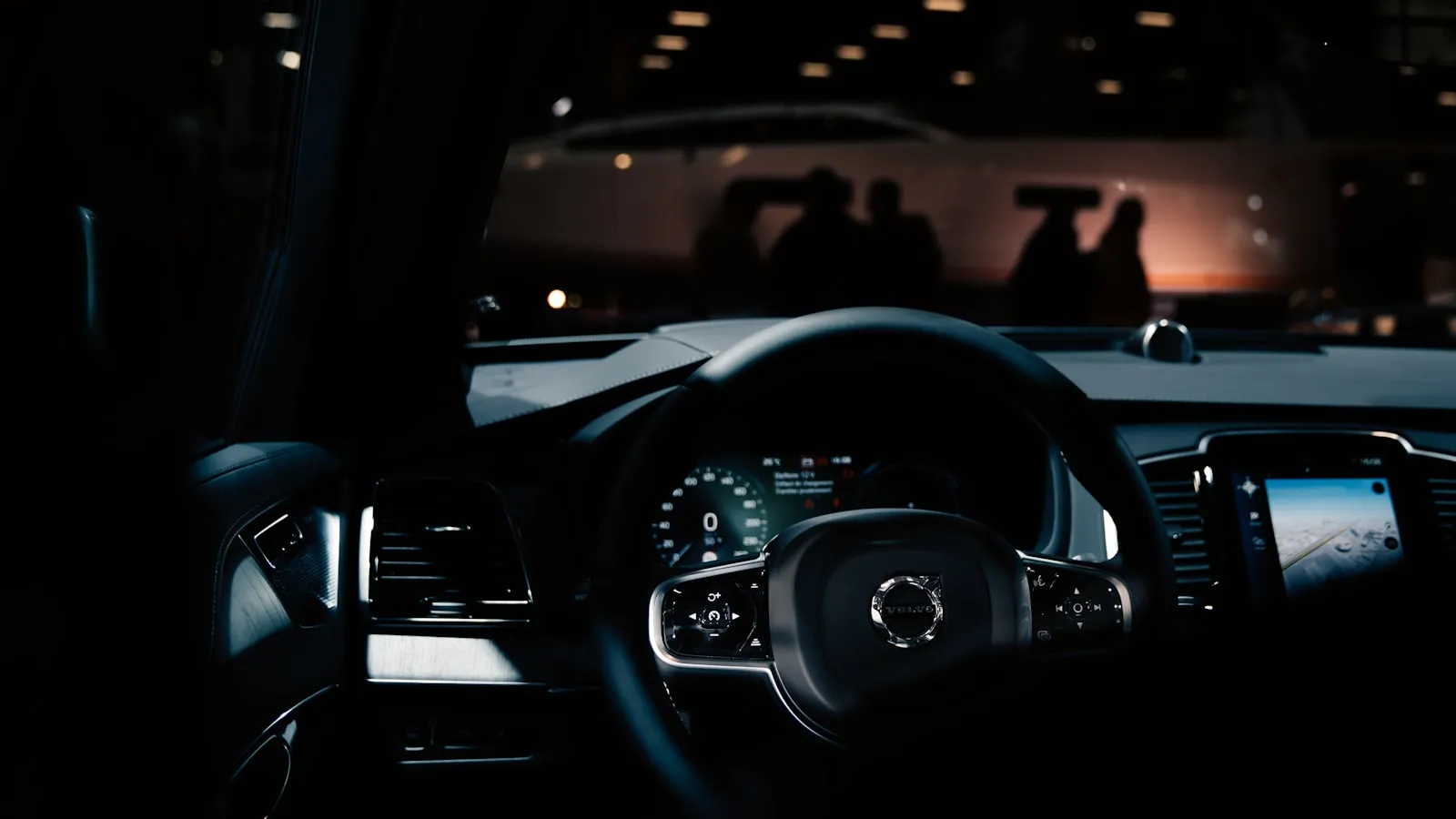
To set up HomeLink on a Tesla Model 3, train your opener remote 12–18 inches from the front of the car, not the visor. The receiver sits behind the nose cone near the front logo, which is what most generic guides get wrong. From there, rolling-code openers and driveway gates each add a step, and a few Model 3 quirks (like the HomeLink button graying out when you park away from home) trip up owners following instructions written for other cars.
This guide covers the full programming flow, the quirks unique to the Model 3, and the troubleshooting steps that apply when HomeLink stops working or was never set up correctly.
Does Your Model 3 Have HomeLink?
The first question is whether the hardware is present. Most Model 3 units produced before late 2023 include HomeLink as standard. A portion of units produced after that — particularly outside North America — shipped without the built-in receiver.
The quickest check: tap Controls → HomeLink on the touchscreen. If the option appears and lets you add a location, the hardware is there. If Controls has no HomeLink entry, your car may not include it.
Units without built-in HomeLink can add the capability via Tesla’s aftermarket module. We cover that hardware and installation in our guide to the Tesla HomeLink add-on module.
Where Is the Receiver? (This Is What Most Guides Get Wrong)
The Model 3’s HomeLink receiver sits at the front of the car — behind the nose cone near the front logo — not at the visor or rearview mirror. When training HomeLink, hold the original remote toward the front of the car, 12–18 inches from the bumper.
Holding the remote at the visor as you would in most other vehicles produces inconsistent results because the signal path is wrong. The antenna picks up RF from outside the windshield, not from inside the cabin.
Programming: Fixed-Code Openers (Older and Budget Models)
Openers manufactured before approximately 1996, and many lower-cost models still sold today, use fixed code — the transmitted signal is the same every time.
- Go to Controls → HomeLink on the touchscreen.
- Tap Add New Device. Follow the prompts to name the device and set a geofence location.
- Select the button slot you want to program (Button 1, 2, or 3).
- Hold the original remote 12–18 inches from the front of the car and press and hold the button. The touchscreen indicator confirms when the signal is received.
- Tap Done and test.
That is the complete flow for fixed-code openers. Rolling-code openers require one additional step.
Programming: Rolling-Code Openers (LiftMaster, Chamberlain, Genie, and Most Others)
Openers manufactured after about 1996 — the large majority in use today — use rolling code. Each transmission carries a different code, which prevents replay attacks. Programming HomeLink to a rolling-code opener requires two steps.
Step one is the same as above: train from the original remote while standing near the front of the car. The touchscreen will confirm signal received.
Step two: go to the opener itself. Find the Learn button on the motor unit (it is typically a small colored button near the antenna wire or status light on the opener head). Press and hold it until the status indicator blinks or the unit beeps — this opens a pairing window, typically 30 seconds. Return to the car and press the newly trained HomeLink button twice. The opener should confirm sync with a click, a light flash, or a beep.
If the opener does not respond, the most common cause is that the pairing window closed before you got back to the car. Repeat the Learn button step and move quickly. Our guide to rolling-code programming for HomeLink covers brand-specific Learn button locations and the exact timing for LiftMaster, Chamberlain, Genie, and others.
For Driveway Gates
Gate openers add geography to the process. The Learn button is inside the motor housing at the gate — not in the garage — which means the two-step pairing involves a trip out to the gate mid-sequence.
The flow is the same: train from the remote at the front of the car, then walk to the gate opener, press Learn, and return to the car to confirm. On a long driveway, that round trip takes three to five minutes rather than thirty seconds.
Some gate openers also operate on frequencies outside the range the Model 3’s HomeLink module transmits. The HomeLink driveway gate guide covers which opener models pair reliably and which don’t respond to the standard frequencies.
Model 3-Specific Quirks
The button goes gray. HomeLink on the Model 3 is geofence-tied: it only activates when the car recognizes it is near a saved location. Park a block away from home and the HomeLink buttons are grayed out. This is intentional behavior, not a malfunction. Reprogram the geofence if the saved location pin is not accurate.
The menu location shifts with software versions. The HomeLink controls have moved between major software releases. In most recent versions they are at Controls → HomeLink. Once buttons are programmed, a HomeLink shortcut also appears in the top status bar when the car is near a saved location. If you can’t find the menu, use the touchscreen search bar and type “HomeLink.”
Range is variable and directional. Effective range for most Model 3 units is 25–75 feet, though this varies with the opener model, building materials, and approach angle. Metal door panels, reinforced concrete, and stucco walls can cut effective range by half. The antenna placement at the front of the car means approaching straight-on tends to outperform a steep side approach — a factor for curved driveways.
Training from the opener’s Learn button directly doesn’t work. Some owners try to skip the remote step and go straight to the Learn button on the opener. The Model 3’s HomeLink expects to learn the transmission pattern from the original remote first. Skipping that step produces a signal the opener won’t recognize.
Troubleshooting
Signal not recognized during training: Move the remote closer to the nose of the car — try 6–10 inches. Train outdoors away from metal structures that can reflect RF and confuse the receiver.
Opener hears the signal but won’t sync (rolling code): Redo the Learn button step. The pairing window is usually 30 seconds. Some openers require three consecutive HomeLink button presses after the Learn step to confirm pairing.
Button disappeared after a software update: Rare, but the geofence location occasionally needs to be re-saved after a major update. Go to Controls → HomeLink → Edit Location and confirm the saved pin is at the correct address.
Opener was replaced or its control board was swapped: The old pairing no longer applies. Delete the saved button and start the programming sequence from scratch.
For a deeper explanation of why each of these issues behaves the way it does, see how HomeLink actually works.
When the Button Approach Isn’t the Right Fit
HomeLink is a proximity-dependent RF system designed around garages, where the opener is 30 feet away and the receiver is in line with the car. Driveway gates change the geometry: the motor is 50–300 feet from the street, often at an angle, and the rolling-code pairing process requires a mid-sequence trip that has no parallel in garage use.
There is a newer category of gate access that removes the button dependency entirely. Vehicle-paired systems identify the approaching car by GPS position and open the gate automatically — no button press, no line-of-sight requirement. Proxly is one option in that category, and you can see how it works at getproxly.com/beta.
FAQ
Does the Tesla Model 3 come with HomeLink built in? Most Model 3 units built before late 2023 include HomeLink as standard equipment. Some later units—particularly in certain markets—shipped without the built-in receiver. Check by opening Controls → HomeLink on the touchscreen: if the option appears and lets you add a location, the hardware is present.
How do I access HomeLink on the Model 3 touchscreen? Tap Controls (the car icon at the bottom of the screen) then select HomeLink. Once buttons are programmed, a HomeLink shortcut also appears in the top status bar whenever the car is near a saved location. The exact menu path shifts slightly between major software versions.
Why is my Model 3 HomeLink button grayed out? HomeLink only activates when the car recognizes it is near a saved location. If GPS has not placed the car within the geofence set during programming, the buttons stay gray. Moving into the driveway or re-saving the location pin usually resolves this.
Can Model 3 HomeLink open a driveway gate? Yes, if the gate opener accepts the frequency HomeLink transmits and you complete the two-step rolling-code pairing for Security+ and similar protocols. The most common friction point is that the Learn button is inside the gate motor housing at the gate itself, requiring a trip out mid-programming.
How do I delete and reset a HomeLink button on the Model 3? Go to Controls → HomeLink, tap the button you want to remove, then select Delete. To start completely fresh, delete all buttons one by one and reprogram from scratch. A vehicle soft reset is rarely needed but occasionally clears pairing anomalies after a software update.
References
- Tesla Model 3 Owner’s Manual — HomeLink section: https://www.tesla.com/ownersmanual/model3/en_us/
- Gentex Corporation HomeLink programming guide: https://www.homelink.com/programming
Frequently asked questions
- Most Model 3 units built before late 2023 include HomeLink as standard equipment. Some later units—particularly in certain markets—shipped without the built-in receiver. Check by opening Controls → HomeLink on the touchscreen: if the option appears and lets you add a location, the hardware is present.
- Tap Controls (the car icon at the bottom of the screen) then select HomeLink. Once buttons are programmed, a HomeLink shortcut also appears in the top status bar whenever the car is near a saved location. The exact menu path shifts slightly between major software versions.
- HomeLink only activates when the car recognizes it is near a saved location. If GPS has not placed the car within the geofence set during programming, the buttons stay gray. Moving into the driveway or re-saving the location pin usually resolves this.
- Yes, if the gate opener accepts the frequency HomeLink transmits and you complete the two-step rolling-code pairing for Security+ and similar protocols. The most common friction point is that the Learn button is inside the gate motor housing at the gate itself, requiring a trip out mid-programming.
- Go to Controls → HomeLink, tap the button you want to remove, then select Delete. To start completely fresh, delete all buttons one by one and reprogram from scratch. A vehicle soft reset is rarely needed but occasionally clears pairing anomalies after a software update.
Does the Tesla Model 3 come with HomeLink built in?
How do I access HomeLink on the Model 3 touchscreen?
Why is my Model 3 HomeLink button grayed out?
Can Model 3 HomeLink open a driveway gate?
How do I delete and reset a HomeLink button on the Model 3?
Keep reading

GMC Hummer EV HomeLink: Driveway Gate Setup and Timing
The Hummer EV weighs 9,063 lbs. Most driveway gates take 15-20 seconds to open. Here's how to program HomeLink and get the approach timing right.
Why Tesla HomeLink Fails on Driveway Gates (And the Fix That Isn't a Better Button)
Tesla HomeLink works reliably on garage doors. Driveway gates are a different problem. Here is what goes wrong and what fixes it.
Cybertruck Driveway Gate: Three Ways In, One Hands-Free
Cybertruck owners have three options for a driveway gate: built-in HomeLink, Tesla's geofence, or a GPS tag that opens at 300 feet with no button press.